How to Convert PDF to Word Without Changing Font and Layout
You open the converted Word document and it looks nothing like the original PDF. Fonts are wrong, tables became plain text, and the two-column layout collapsed into one. Here's exactly why this happens — and how to fix it permanently.
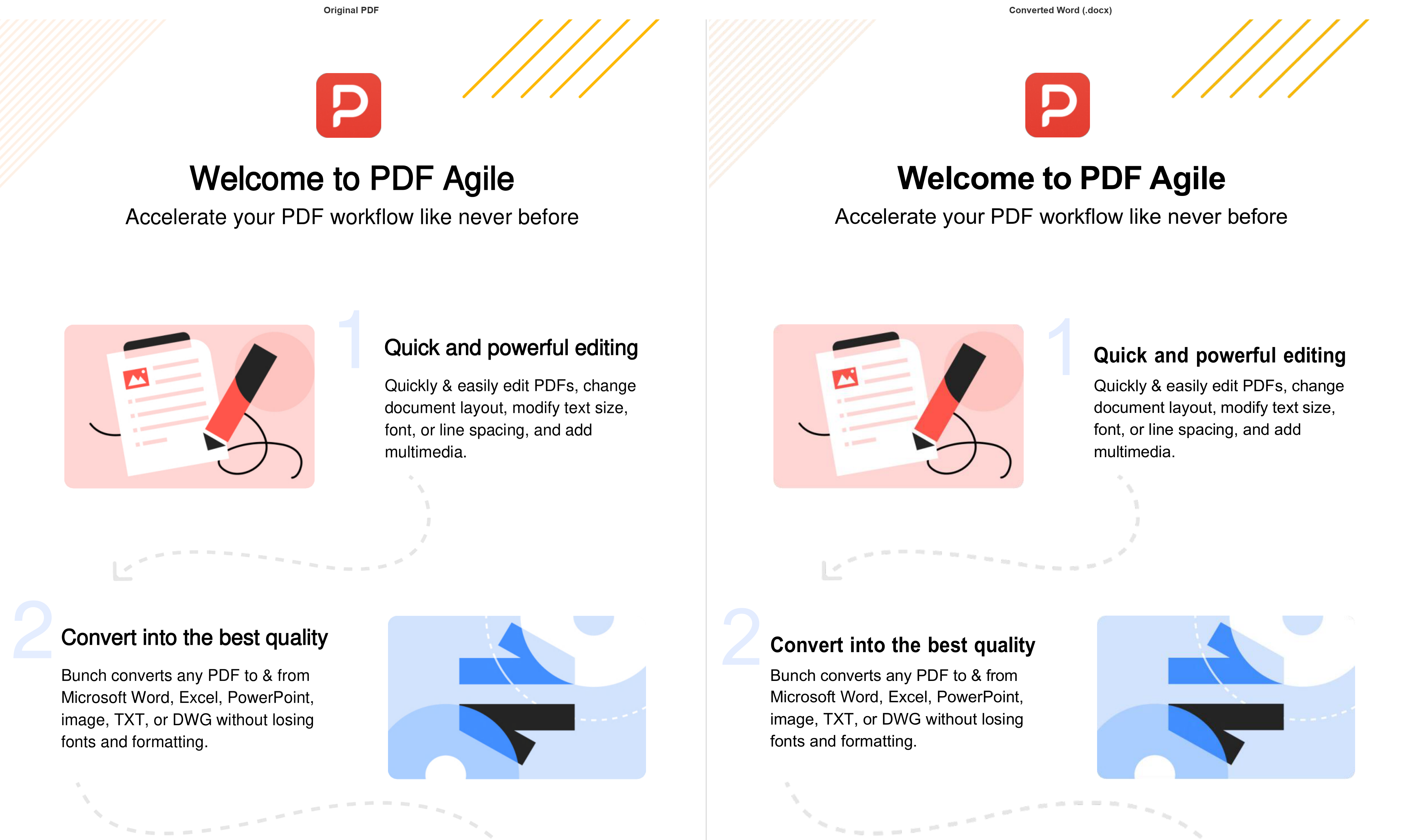
Why PDF-to-Word Conversion Breaks Formatting: The Real Explanation
PDF is a display format, not an editing format. Inside a PDF, text is stored as a series of positioned glyph instructions: "draw character 'H' at coordinate (72, 650) using font subset #4." There is no concept of paragraphs, styles, or table cells at the file format level.
When a converter reads this, it has to reverse-engineer the original document structure from raw coordinates. This reverse-engineering is where things go wrong. Three specific failures are most common:
- Font substitution: The PDF embedded only a subset of the font (e.g., the specific glyphs used in the document). The converter can't reconstruct the full font, so it substitutes Arial or Times New Roman — changing the visual weight, spacing, and line breaks throughout the document.
- Table reconstruction failure: PDF tables are just lines and positioned text. A naive extractor sees lines as decorative graphics and text as independent characters. The result: a "table" becomes a grid of floating text fragments with no cell structure.
- Column merging: Multi-column layouts are stored as two independent text streams positioned side-by-side. Without column detection logic, extractors read left-to-right across both columns simultaneously, producing garbled text that mixes content from both columns.
The 5 Root Causes of Layout Scrambling (and Their Fixes)
1. Missing or Subsetted Fonts
Symptom: Text appears in a different typeface after conversion. Line lengths change. Paragraphs that fit on one page in the PDF now spill onto a second page in Word.
Fix: Use a converter that can match font metrics precisely even when the full font isn't embedded. PDF Agile maps subsetted glyphs to their nearest system-font equivalent using character width tables, preserving line-break positions even when the exact font isn't available.
Better fix: If you have control over the original PDF, create it with full font embedding rather than subset embedding. In Word: File → Options → Save → Embed fonts → uncheck "Embed only characters used".
2. Image-Based (Scanned) PDF
Symptom: The converter outputs a Word document with images instead of text, or entirely blank pages.
Fix: The PDF contains no text data — it's a photograph of a document. You need OCR (Optical Character Recognition) before conversion. In PDF Agile, switch to Convert Mode: OCR + Layout. The OCR engine recognizes characters from the scan, then the layout engine reconstructs paragraph and table structure before exporting to Word.
3. Complex Multi-Column Layout
Symptom: Academic papers, newsletters, and newspaper-style PDFs output as a single column with content from left and right columns mixed together.
Fix: Enable Multi-column layout detection in your converter's settings. PDF Agile identifies column boundaries using whitespace gap analysis and processes each column as an independent text stream before interleaving them correctly in the Word output.
4. Headers, Footers, and Page Numbers in the Body
Symptom: Page numbers and running headers appear inline within the body text, creating clutter and breaking paragraph flow.
Fix: Enable Detect running headers/footers. PDF Agile identifies repeating content at consistent y-coordinates across pages and routes it into Word's header/footer sections rather than the main body.
5. Tables Converted to Plain Text
Symptom: A clearly structured table in the PDF becomes a block of numbers in the Word document, with no row or column separation.
Fix: Tables must be reconstructed from cell boundary analysis. For PDFs with visible cell borders, PDF Agile's line-detection mode reconstructs table structure reliably. For borderless tables (aligned using whitespace), use Whitespace table detection mode.
Step-by-Step: Convert PDF to Word Without Losing Formatting
- Download and install PDF Agile (free, works offline).
- Go to Convert → PDF to Word.
- Select your PDF. Before clicking Convert, open Settings:
- Enable Preserve layout
- Enable Detect running headers/footers
- If multi-column: enable Multi-column detection
- If scanned: switch mode to OCR + Layout
- Click Convert. The output .docx opens automatically.
- Do a quick visual check: compare the first page, a table, and a header against the original PDF.
Ready to fix your PDF-to-Word formatting issues?
Try the PDF to Word Converter →When Perfect Formatting Preservation Is Impossible
Honest caveat: no converter achieves 100% fidelity in all cases. The closer the original PDF was to a Word document (created from Word via proper PDF export), the better the round-trip quality. PDFs that are highly graphical, use custom typefaces not available on your system, or were created by specialized design software (InDesign, Illustrator) will always require some manual cleanup after conversion.
The goal of a good PDF-to-Word converter is to minimize that cleanup — not eliminate it entirely for complex documents.
Frequently Asked Questions
Why does my converted Word doc have different line breaks than the PDF?
Line breaks depend on font metrics. If the converter substituted a different font, character widths change slightly, causing text to wrap at different points. Using a converter that embeds original font data (like PDF Agile) minimizes this issue.
Can I convert a password-protected PDF to Word?
You need the password to unlock the PDF first. PDF Agile supports password entry before conversion. If the PDF is owner-restricted (print/edit permissions denied) rather than user-password protected, conversion behavior depends on the restriction level.
Does converting PDF to Word work for Chinese/Japanese/Korean text?
Yes, provided the corresponding CJK font is installed on your system. PDF Agile supports Unicode text extraction and CJK glyph mapping for all major East Asian writing systems.